How to use CyOps
This page collects the main CyOps usage topics. Detailed instructions will be added in later updates.
1. How to configure the model
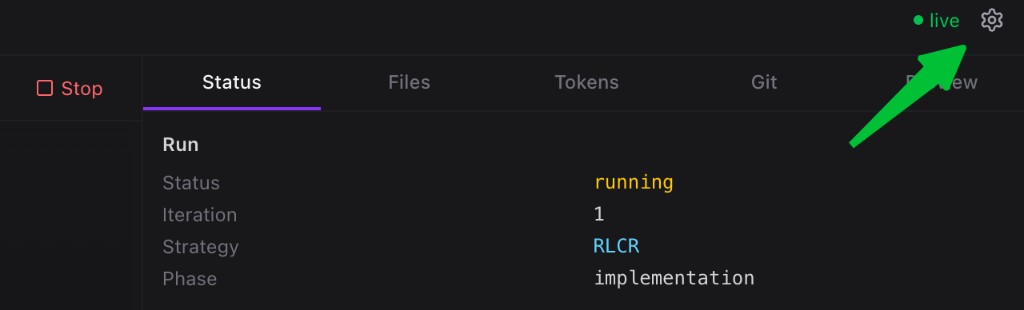
Step 1. Open Settings
Click the settings button in the top-right corner of the CyOps workspace.
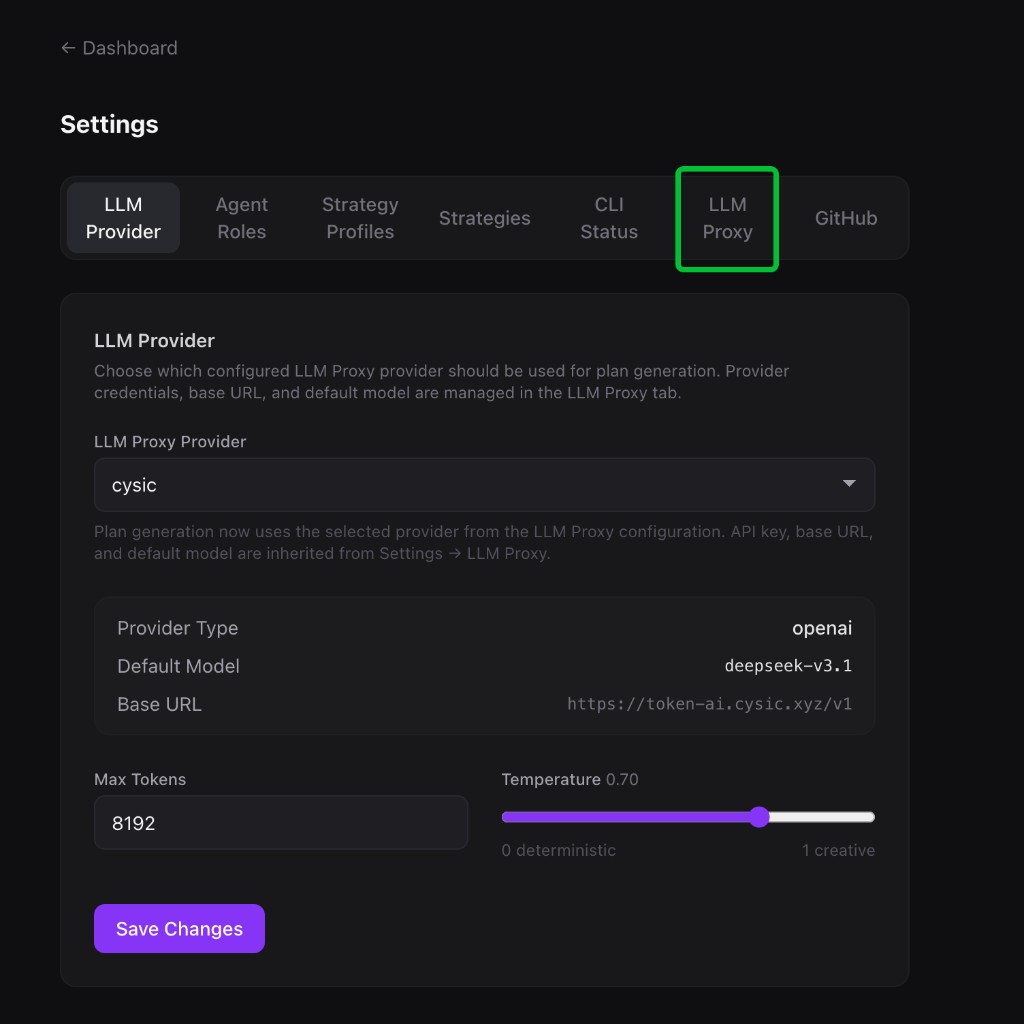
Step 2. Open the LLM Proxy tab
In the Settings page, click LLM Proxy to view the current model routing configuration.
Step 3. Edit the model mapping
Click the edit button for the agent entry you want to update, then change the routed model to the one you want to use.
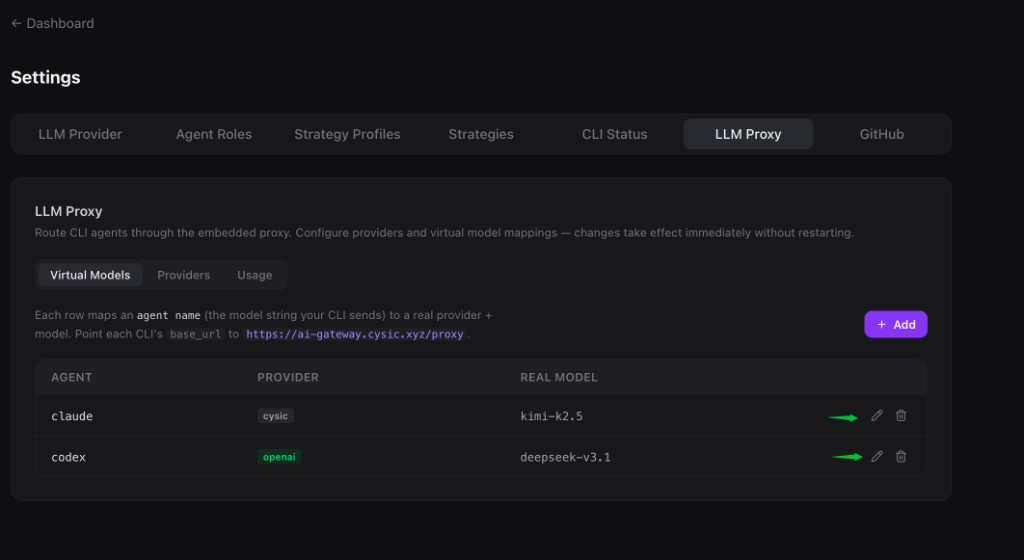
You can change the model whether CyOps is currently working or idle. The update takes effect immediately through hot reload, and the next inference request will be routed to the newly configured model.
2. How to create a project and let CyOps start writing code
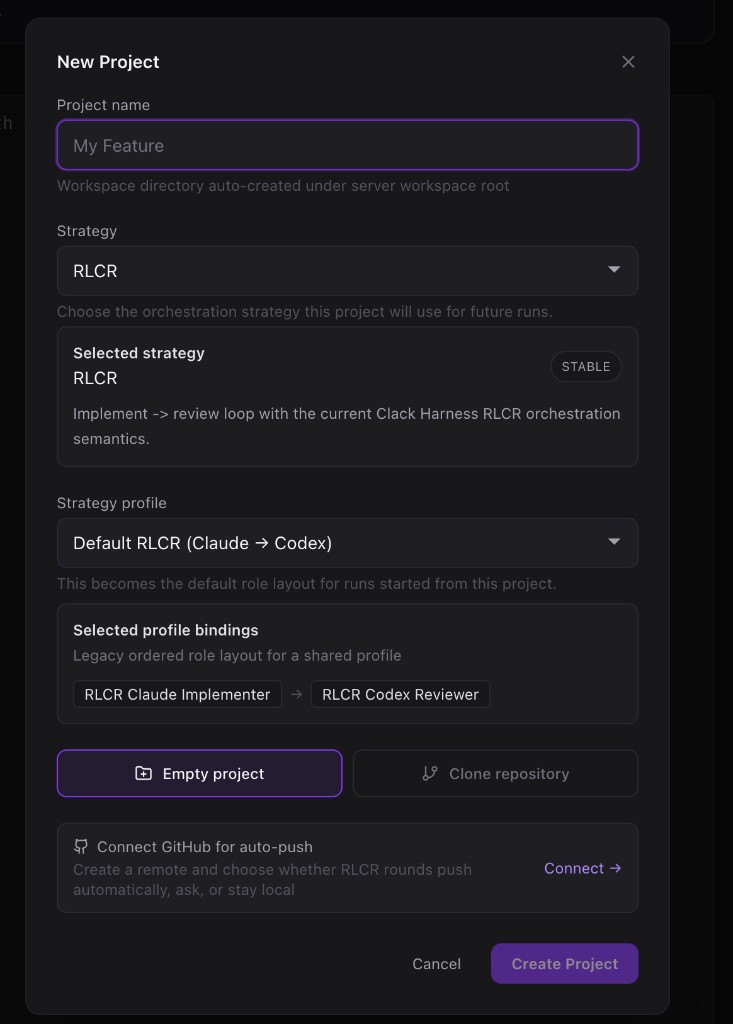
Step 1. Create a project
Click New Project, enter the project name, choose the strategy and strategy profile you want to use, then click Create Project.
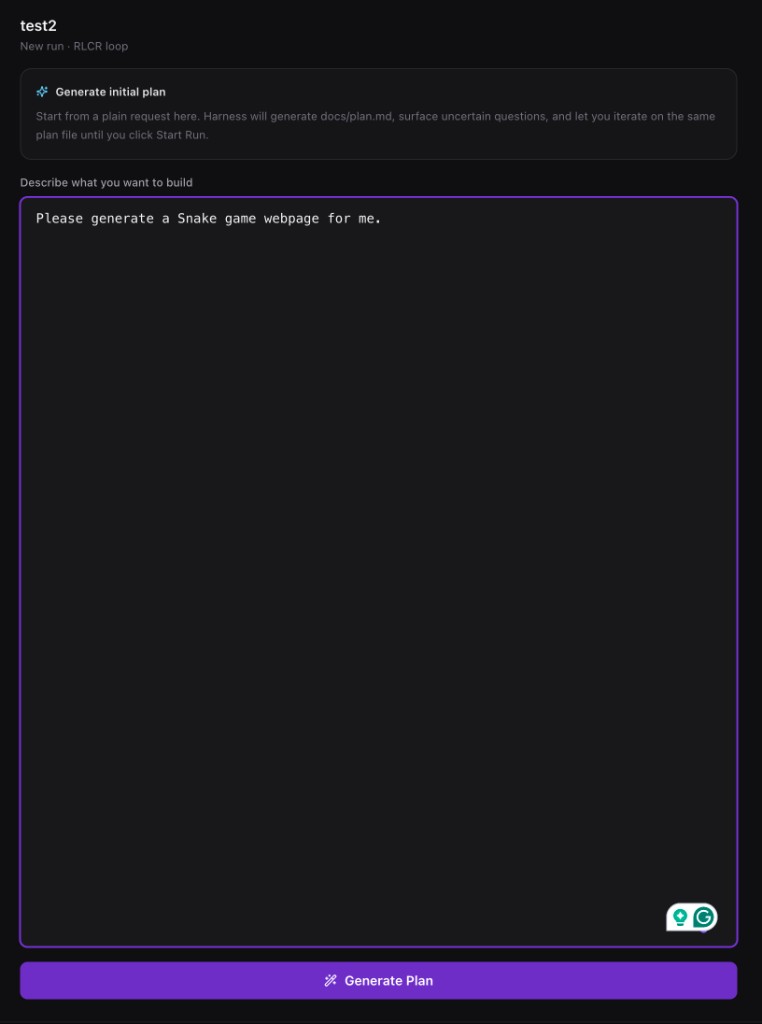
Step 2. Describe your request and generate a plan
After the project is created, enter your requirement in the input area and click Generate Plan. CyOps will create an initial implementation plan for the task.
Step 3. Review the plan and start the run
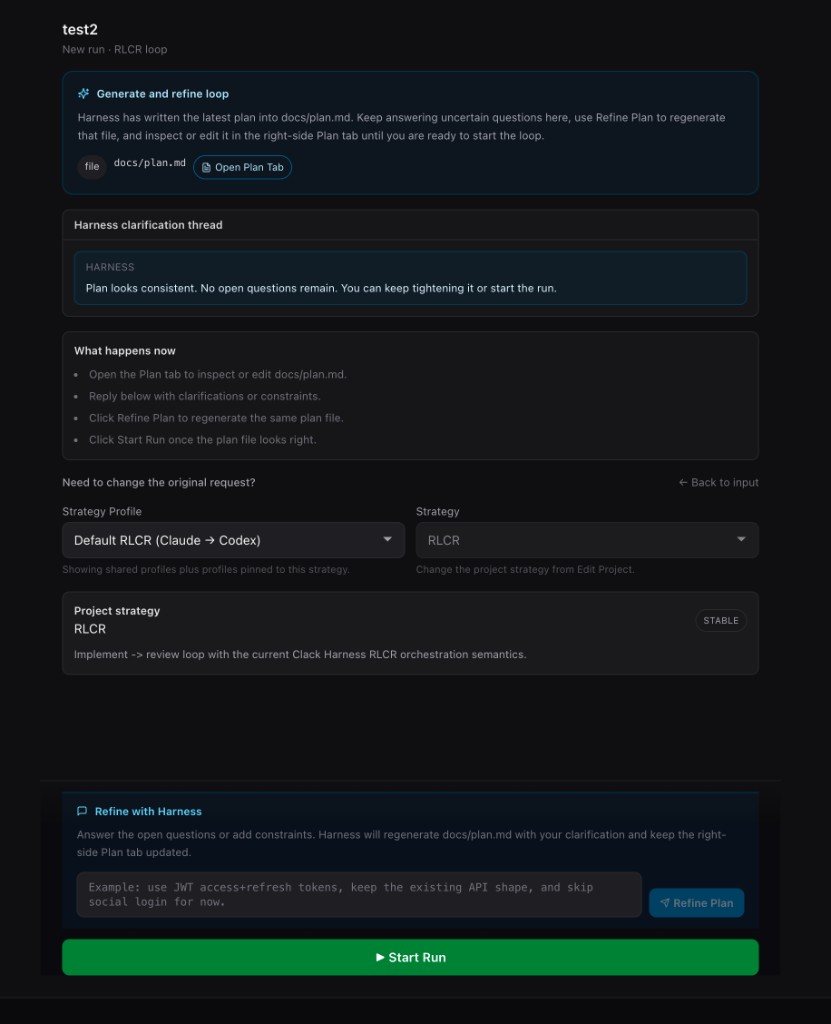
Once the plan is generated, you can continue adding more requirements in the clarification input, and you can also review the plan details on the right side. If needed, you can manually edit the plan before starting.
When the plan looks good, click Start Run and CyOps will begin working automatically.
3. What is a project and what is a session
A project has its own dedicated workspace. The workspace contains the project's files and environment files, and acts as the shared working area for all runs under that project.
A session is an individual task conversation or run. Each session has its own independent context, but multiple sessions under the same project share the same workspace.
4. How to check task status
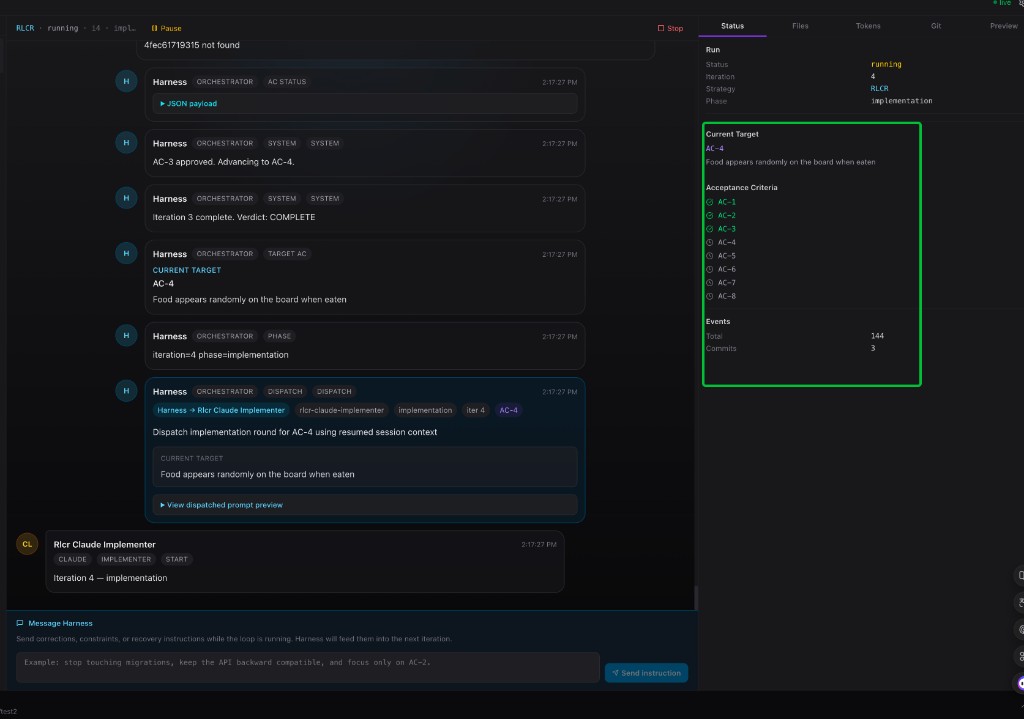
Open the Status tab while a run is in progress to check the current task state.
In this panel, you can see the current run status, iteration, strategy, phase, and the task's acceptance progress. The acceptance checklist shows which acceptance criteria have already passed and which ones are still pending.
5. How to check task plans
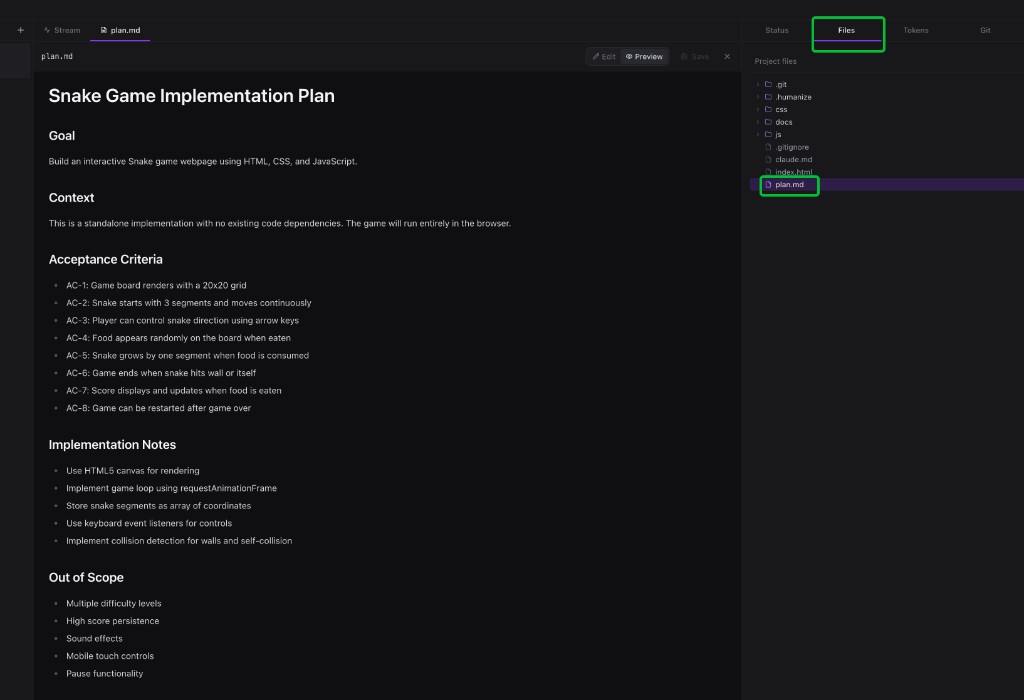
Open the Files tab and click plan.md to view the current task plan.
You can read the plan there at any time, and if needed, you can also edit the plan file directly before continuing the run.
6. How to view AI-generated artifacts
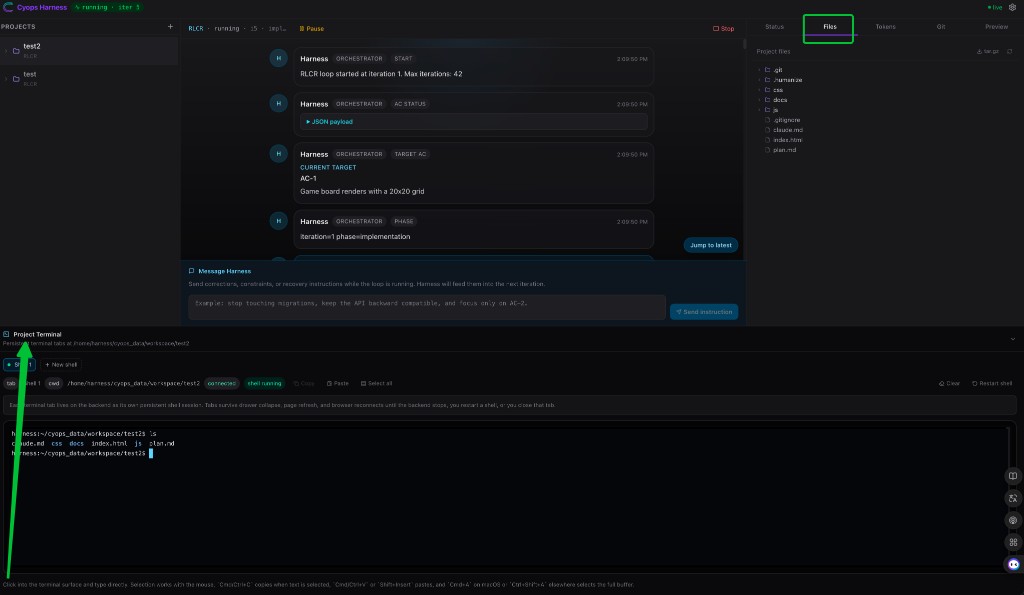
You can view AI-generated artifacts in two ways:
- Click the Files tab to browse the generated files directly in the workspace.
- Open the terminal at the bottom and use shell commands to inspect the files and folders in the current project workspace.
7. How to connect my GitHub
You can complete GitHub connection in two ways.
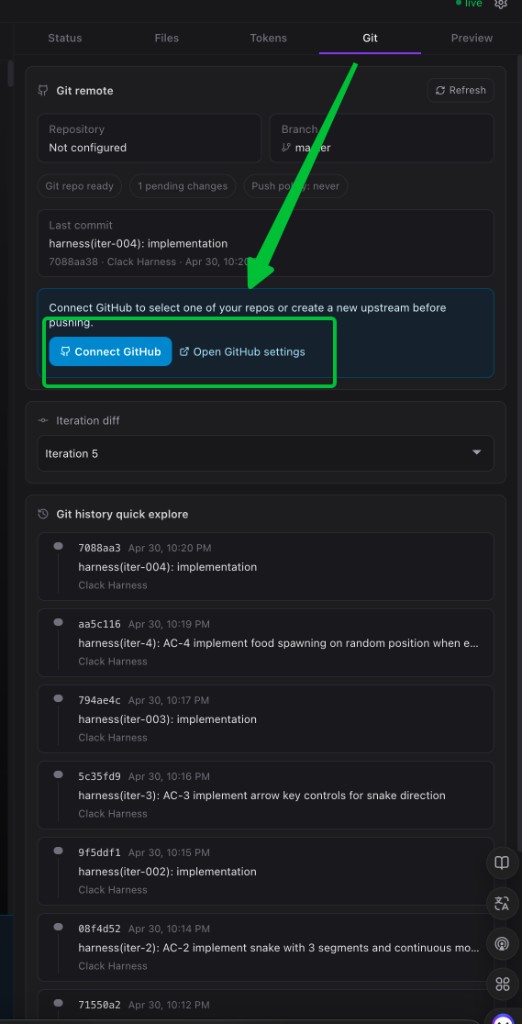
Option 1. Connect from the Git tab
Open the Git tab in CyOps and follow the built-in CyOps guidance to complete the GitHub connection flow.
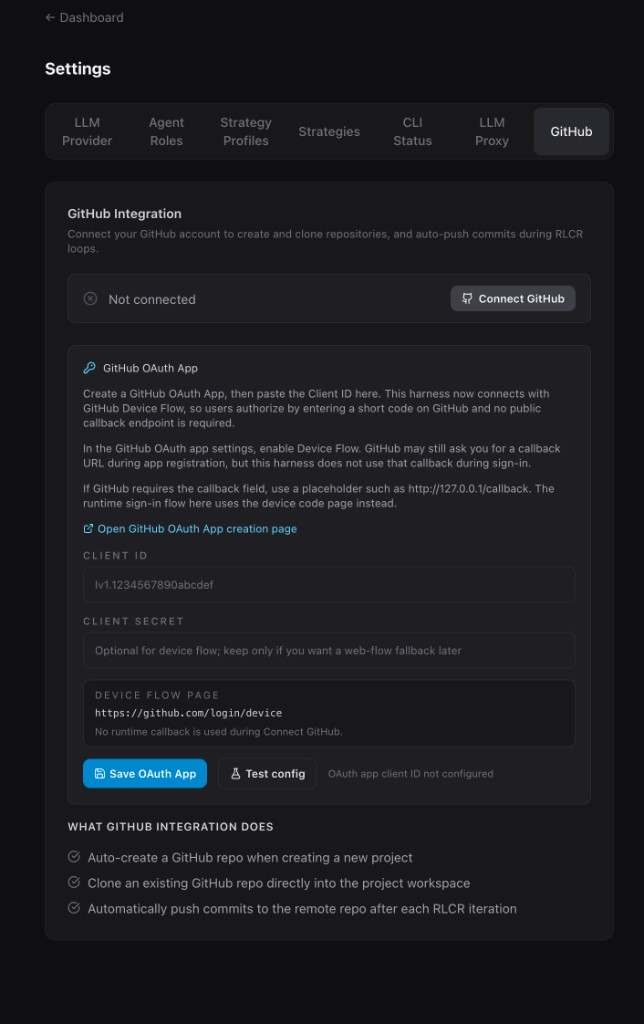
Option 2. Connect from Settings
You can also open Settings and complete the GitHub configuration by following the instructions shown in the GitHub settings page.
8. How to use the web terminal in my CyOps workspace
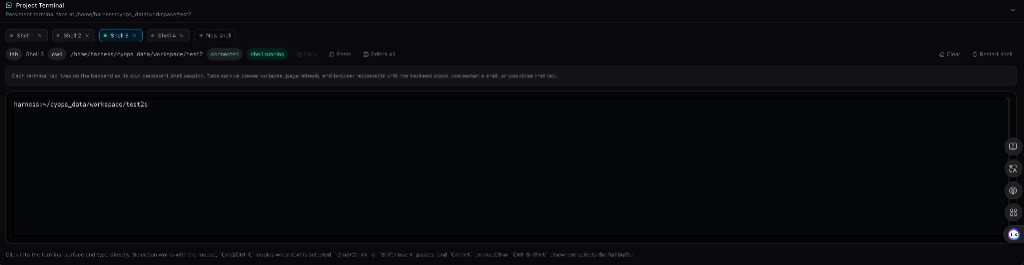
Click the Project Terminal panel at the bottom of the workspace to open the web terminal.
CyOps supports multiple terminals, so you can work with more than one shell session at the same time. The terminal behavior and experience are designed to stay consistent with a native Linux terminal.
9. What are agent roles and strategies, and how to orchestrate them
In CyOps, multi-agent execution is organized in three simple layers:
- Agent Roles define individual agents
- Strategies define how agents collaborate
- Strategy Profiles connect the two into a runnable setup
If you understand these three pages in Settings, you understand how CyOps orchestration works.
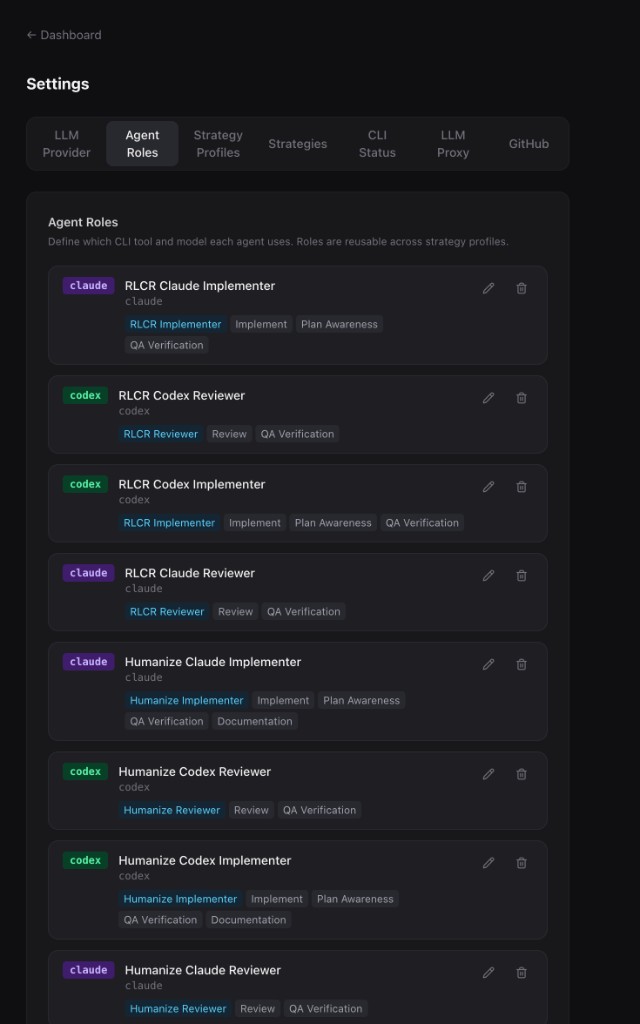
1. Agent Roles
Agent Roles are the reusable building blocks of the system.
Each role defines things like:
- which CLI it uses, such as Claude or Codex
- which model it runs with
- what kind of work it is meant to do
- which prompt profile or capability set it belongs to
Examples from the UI include:
RLCR Claude ImplementerRLCR Codex ReviewerHumanize Claude ImplementerRalphex Testing Reviewer
A simple way to think about it is: an agent role describes who the agent is.
For example, one role may be specialized for implementation, while another is optimized for review or testing.
2. Strategies
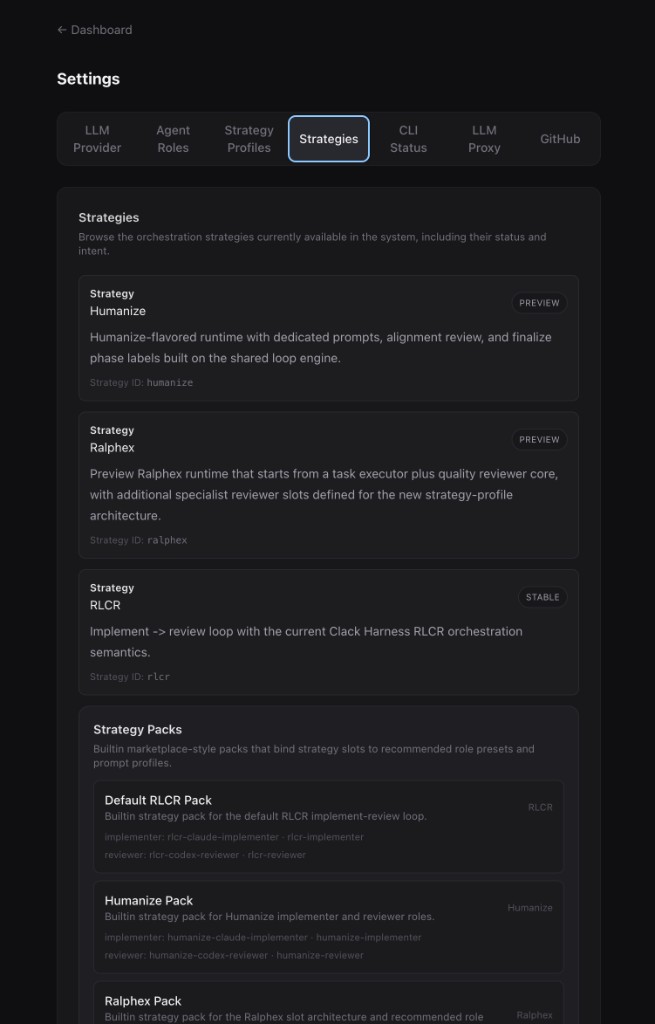
Strategies define the orchestration pattern.
They do not define a specific agent. Instead, they define the runtime method CyOps will use during a run.
Examples in the UI include:
RLCR: a classic implement -> review loopHumanize: a more alignment-focused loop with dedicated prompts and finalization behaviorRalphex: a richer multi-reviewer strategy with specialist reviewer slots
A simple way to think about it is: a strategy describes how the work should flow.
So if agent roles are the people on the team, the strategy is the collaboration model.
3. Strategy Profiles
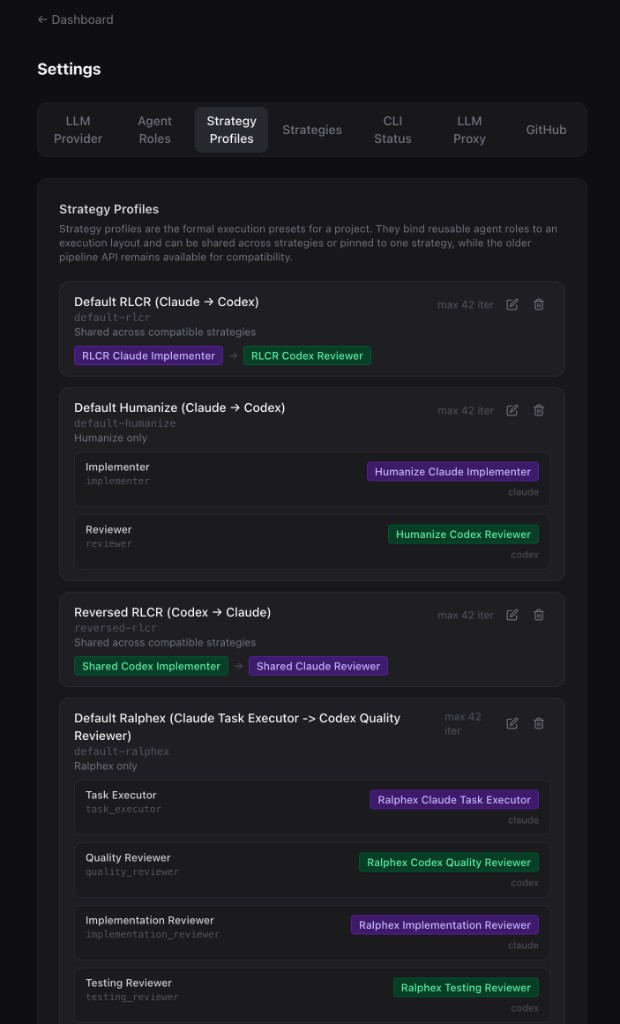
Strategy Profiles are the execution presets for a project.
A profile binds actual agent roles to the slots required by a strategy.
For example:
- in an
RLCRprofile, you may assign: Implementer -> RLCR Claude ImplementerReviewer -> RLCR Codex Reviewer- in a
Ralphexprofile, you may assign: Task Executor -> Ralphex Claude Task ExecutorQuality Reviewer -> Ralphex Codex Quality Reviewer- plus optional specialist reviewers
A simple way to think about it is: a strategy profile describes which agents will play which roles.
How they work together
These three layers work together like this:
Agent Roles= the agents you can reuseStrategies= the orchestration methodStrategy Profiles= the concrete setup for running that method
In other words:
- Agent Roles answer: Who are the agents?
- Strategies answer: How should they collaborate?
- Strategy Profiles answer: Which agent fills each slot in this workflow?
How to orchestrate them
A simple CyOps workflow looks like this:
- Create or review your Agent Roles. Define the agents you want to use, such as implementers, reviewers, or specialist reviewers.
- Choose a Strategy. Pick the orchestration style that matches your workflow, such as
RLCR,Humanize, orRalphex. - Create a Strategy Profile. Bind your chosen agent roles to the slots required by that strategy.
- Assign the profile to a project. This gives the project a ready-to-run orchestration setup.
- Start a run. CyOps will resolve the selected strategy and profile, load the assigned roles, and execute the workflow.
A simple example
Here is a common setup:
Strategy:RLCRStrategy Profile:Default RLCR (Claude -> Codex)Implementer Role:RLCR Claude ImplementerReviewer Role:RLCR Codex Reviewer
In this setup:
- Claude writes or updates the code
- Codex reviews the result
- CyOps loops until the acceptance criteria are complete
Key takeaway
In CyOps, agent roles define individual execution agents, strategies define the orchestration method, and strategy profiles bind roles to a strategy so a project can run them as a complete workflow.